
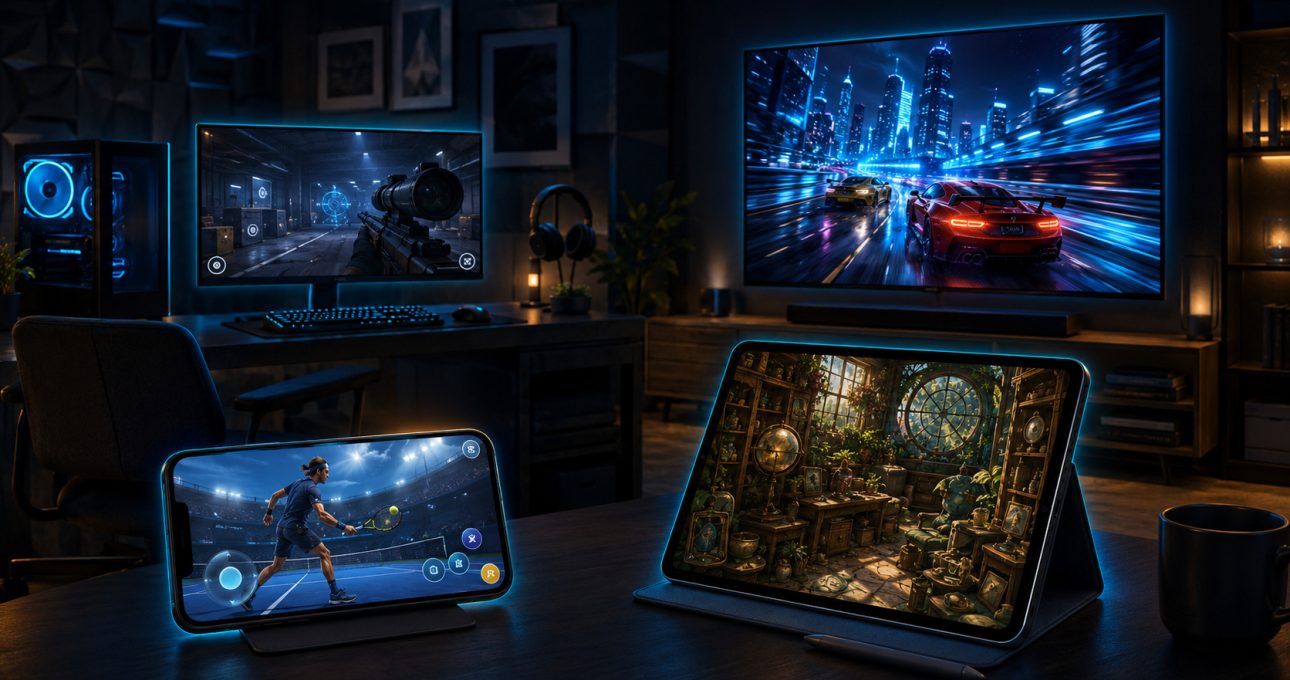
Choose a GameBee game by opening Game Bee Studio's App Store profile, selecting the device you intend to use and reading that title's compatibility, controls and current offer. iPhone, iPad, Mac and Apple TV are separate play contexts. A game listed for more than one device does not automatically provide shared saves, shared purchases, cross-play or identical controls.
The current Game Bee Studio collection groups titles by device. Use that structure to narrow the choice, then let the individual product detail define the exact requirement.
Choose iPhone for portability and immediate touch input
An iPhone suits short sessions, commuting and play that benefits from direct touch or motion input. The current Game Bee Studio profile includes several mapped titles in its iPhone and iPad collection, such as Pool Masters, Archery Arena, Chhota Bheem: Cooking Mania, Sniper Shooting, Chhota Bheem Word Kingdom, Chhota Bheem: Kart Racing, World Sports, Baseball Super League and Chhota Bheem: Adventure Run.
That collection placement is a discovery signal, not a promise that every title has the same controls or offline behaviour. Open the exact listing, confirm the iOS requirement, age information, purchases and connectivity. Choose a game whose main loop fits the available time and the way you prefer to hold the phone.
Choose iPad when screen space improves the activity
An iPad offers more room for aiming, reading menus and understanding busy scenes while retaining touch input. It can be a better fit for sports management, word play, hidden-object search or careful aiming when those features are confirmed by the selected title.
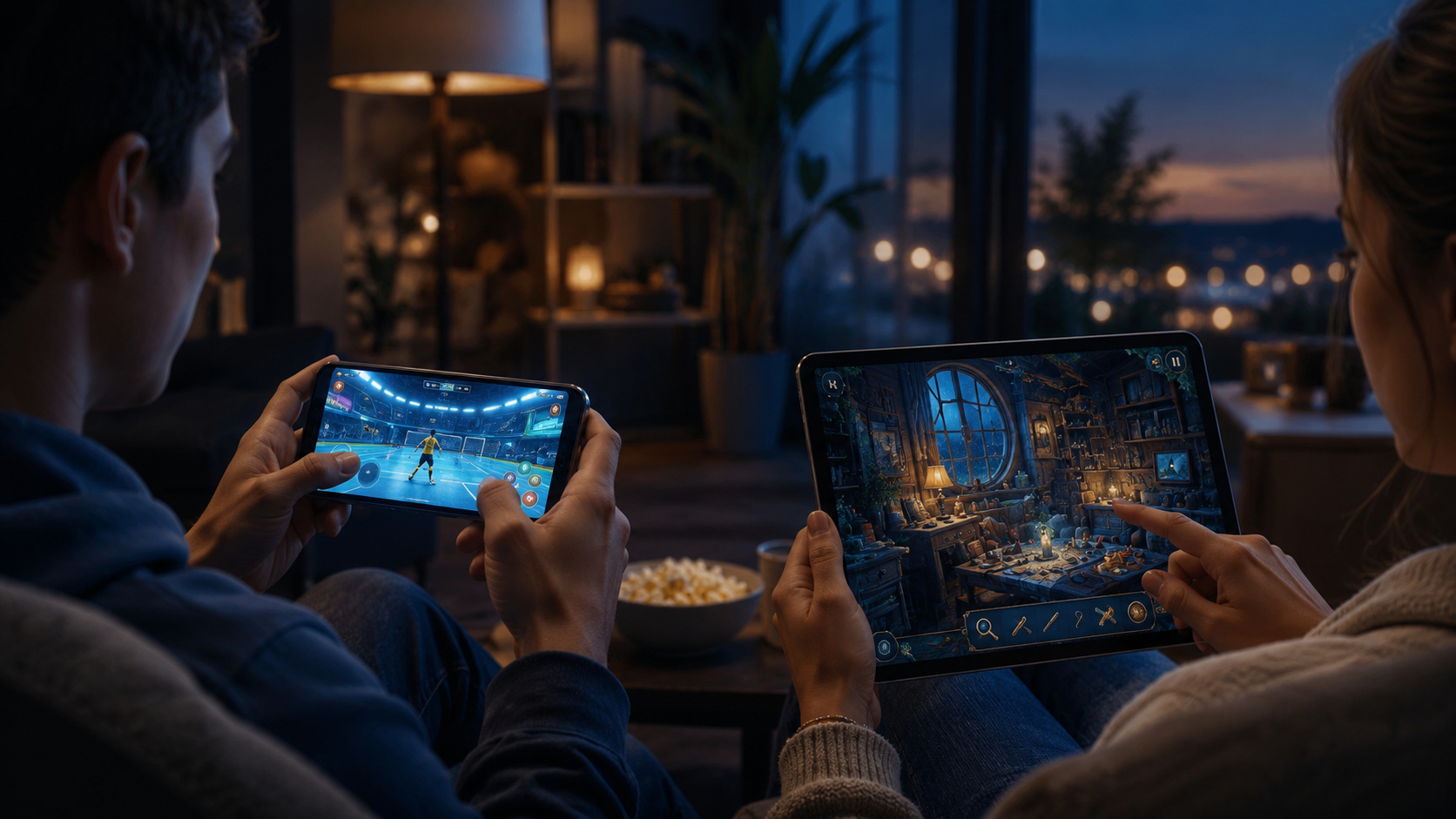
Do not infer a special tablet mode from iPad compatibility alone. The app may share a universal build with iPhone or may present different layouts. Review screenshots and the installed prompts, and avoid claiming keyboard, controller or split-screen support unless the product detail confirms it.
Choose Mac for a desk-based big screen
The current Game Bee Studio profile shows Rolling Ball Adventure, Fruit Cutter and selected other releases under Mac. A Mac can provide a larger view and access to keyboard, mouse or supported controllers, but each game decides which inputs it implements. For example, Fruit Cutter's version history names Mac keyboard, mouse and controller support, while another title can use a different mapping.
Check the required macOS version and whether the app is designed for Mac or offered through another compatibility path. Read the commercial terms separately; an app appearing on Mac and Apple TV does not prove one purchase or one save state across both devices.
Choose Apple TV for couch-distance play
Apple TV is the natural choice when the game should fill the television and be controlled from the room. Within the approved catalogue, Formula Racing, Rolling Ball Adventure and Fruit Cutter currently have verified Apple TV listings. Formula Racing is marked only for Apple TV, while Rolling Ball and Fruit Cutter list Mac and Apple TV compatibility.
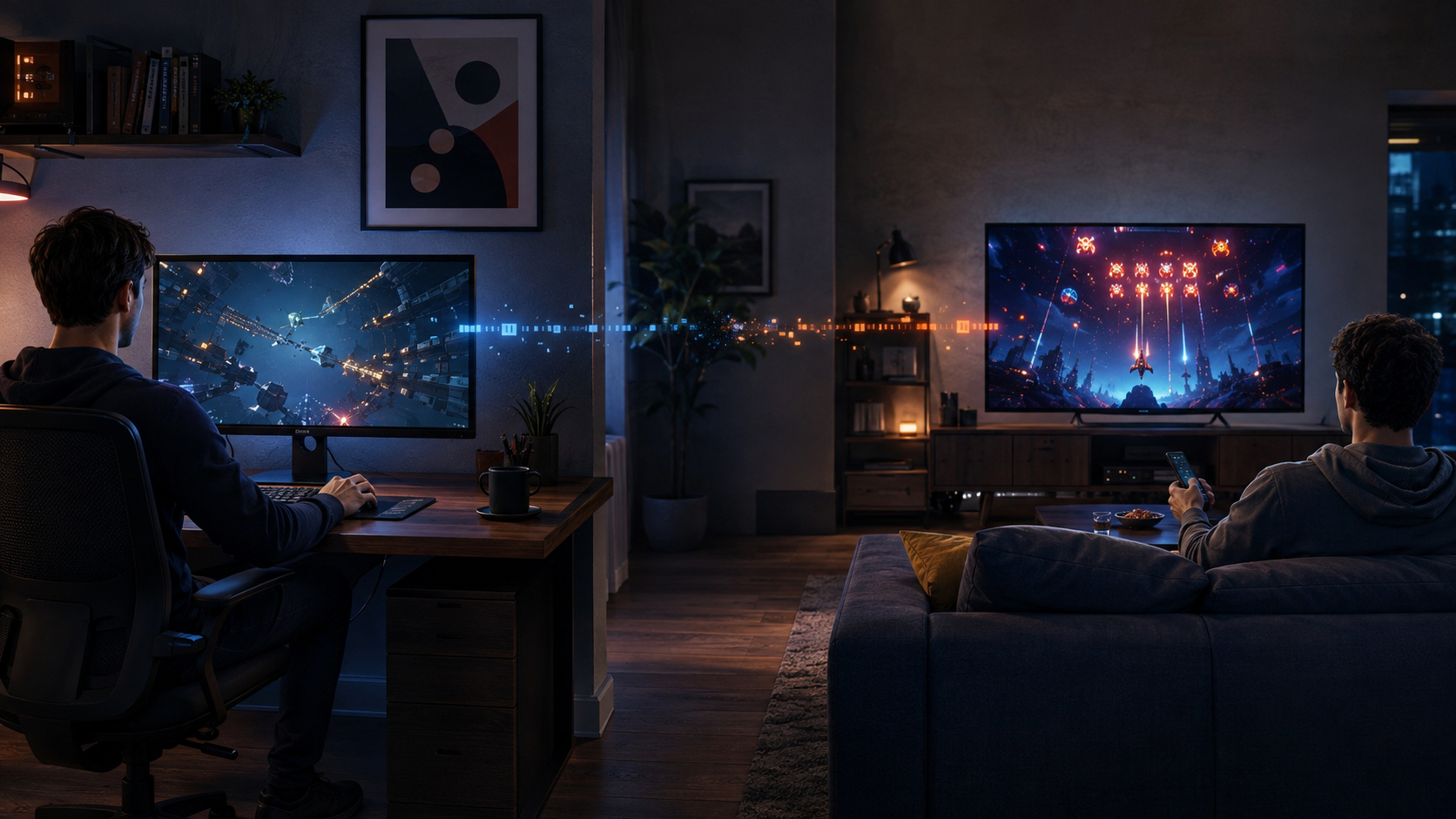
Apple states that new apps can be downloaded on Apple TV 4K and Apple TV HD, while older third-generation hardware does not provide the App Store for downloads. Identify the device and compare its tvOS version with the game's current requirement before selecting Get.
Let the product detail override a broad catalogue label
Website filters and developer collections help discovery, but the individual App Store detail owns compatibility. Read the supported devices, operating-system requirement, age information, language, size, in-app purchases and privacy disclosure. If a title is absent from the device or market, do not use another region's result as a guarantee.
The legacy App Store collection can help you recognise GameBee games, but it may be incomplete or stale. Return to Apple's current listing before downloading or making a product claim.
Install on the device that will be used
On iPhone, iPad or Mac, open the App Store, search for the exact title, verify Game Bee Studio as the developer and choose Get or the displayed price. On Apple TV, open the App Store, select Search, open the title and choose Get or the current purchase action. Apple's Apple TV download guidance explains the supported hardware and standard flow.
Complete the first launch on that device. Review privacy, account, purchase and subscription prompts, then start with the simplest mode. Do not assume that settings made on another Apple device will appear automatically.
Select controls after the device and title are known
Touch is typical on iPhone and iPad, while Mac titles may support keyboard, mouse or controller and Apple TV titles may use the remote or a compatible wireless controller. These are tendencies, not universal rules. Read the app detail and installed prompts.
Apple's wireless-controller instructions cover pairing, but Apple notes that buttons and features can vary by controller and app. A successful connection does not establish complete support inside a GameBee title.
Keep progression and purchases device-specific until proven otherwise
The phrase “available on Mac and Apple TV” describes compatibility, not continuity. Shared progress might require a Game Center or cloud implementation that the title explicitly documents. Universal purchase is a separate commercial feature. Cross-play adds another technical and account layer.
Unless the current product detail or an approved GameBee statement names one of these features, plan each device as an independent installation. This avoids lost progress expectations and accidental duplicate purchases.
Use one practical decision sequence
Choose the screen context: portable, tablet, desk or television. Open the Game Bee Studio profile under that device category. Shortlist only titles whose current details support the device. Compare the main loop, input and available time. Review the offer and data information. Install on the target device and test a short session before committing to purchases or accessories.
This process is more reliable than choosing a title first and trying to make every Apple device fit it afterward.
Apple device choice questions
Does a GameBee title listed for Mac and Apple TV share progress automatically?
No. Compatibility on two devices does not prove cross-save or shared progress. Look for an explicit product statement before expecting continuity.
Can I buy once and use the same GameBee game on every Apple device?
Do not assume universal purchase. Read the current App Store offer for the Apple ID and device, and rely only on an explicit universal-purchase statement.
Which Apple device is best for a GameBee sports game?
Choose by context: iPhone for portability, iPad for touch space, Mac for desk play and Apple TV for the living room. The exact sports title must support the chosen device and input.
Will one paired controller work with all GameBee games?
No. Apple supports controller pairing, while app support and button behaviour remain title-specific. Verify the product detail and test the installed edition.
Choose one device with verified expectations
Browse Game Bee Studio on the App Store, open the exact product detail and decide from the device, controls and offer shown there. Clear expectations make the first session more useful than an unsupported promise of playing everywhere.