

To find the right GameBee game, identify the exact device first and use the official store profile that serves it. The GameBee games catalogue helps with discovery, but the selected Google Play or Apple record decides compatibility, controls, commercial terms and current availability. A title match is not enough when editions can differ.
The process below works without inventing store buttons or assuming one interface. It asks for outcomes: confirm the hardware and operating system, locate the Gamebee Studio developer identity, open the individual record, compare input and session needs, review household signals and run a short first-session test. Stop whenever the evidence does not match the device.
Step 1: identify the exact hardware and store
Write down the device type, operating system and store available on it. An Android phone, Google TV, iPhone, iPad, Mac and Apple TV are not interchangeable search targets. Even when they share a title, they may expose different records, inputs, purchases or update histories. Starting with hardware prevents the search from drifting toward an edition that cannot be used.
If the device is managed by a household or organization, also confirm which account can install apps and whether purchases are restricted. Do not solve those questions after selecting a game. The useful candidate is one that can be found through the legitimate store on the intended hardware and reviewed under the correct account conditions.
Step 2: begin from a verified developer identity
On Android, use the official Gamebee Studio Google Play profile. On Apple, use the Game Bee Studio developer page. A developer profile reduces the risk of choosing a similarly named product, but the individual listing must still show the expected seller and title before installation.
Avoid third-party download sites and search-result copies when an official destination is available. They may preserve an obsolete title, unsupported package or inaccurate platform claim. If a GameBee catalogue entry and the store use different names, record both names and let the store identifier define the current edition instead of combining their features.
Step 3: separate availability from optimization
A listing can say that an app is compatible with hardware without proving that the interface was designed specifically for it. This matters on Apple-silicon Macs, large tablets and television devices. Read the compatibility section and product description together, then look for explicit language about the intended screen or input before calling the edition optimized.
Treat mobile, Mac and TV groupings as discovery evidence. The current Apple developer page exposes those groups publicly, but the individual record controls the detailed answer. On Google Play, the actual device can filter availability. If the install action is missing or the package is marked incompatible, do not bypass that result with an external download.
Step 4: match the input to the player
Decide whether the player expects touch, a television remote, a game controller, keyboard and mouse or another documented input. Then look for that exact support on the selected edition. A remote that can navigate a launcher does not prove that the launched game accepts the same input, and controller support on television does not automatically transfer to mobile or Mac.
For a beginner, control clarity is often more important than the number of modes. Prefer a candidate whose first objective and primary action are explained in the current description or visible in approved screenshots. Do not rely on a universal GameBee button map: each product owns its own controls, and updates can change the interface.

Step 5: define the desired session and progression
Choose the session before comparing features. Is the goal a short solo attempt, offline practice, a longer progression path, real-time competition or shared living-room play? Search the exact listing for the relevant mode. Genre can narrow the field, but it does not prove network requirements, progression structure or multiplayer availability.
If progression matters, identify what the public source actually names: levels, unlocks, tournaments, equipment, missions or another visible system. Avoid building a strategy around assumed rewards or upgrade values. A useful first plan focuses on the opening objective and one repeatable skill, then adapts only after the installed build exposes the real progression rules.
Step 6: check storage, network and commercial conditions
Review the current download size or storage information shown by the store and leave room for installation and future updates. Confirm whether the description explicitly supports offline play before relying on it. A game can install successfully and still require a connection for selected modes, events, purchases or account functions that the portfolio page does not explain.
Read the current age rating, advertising, in-app purchase and privacy or data-safety sections. These fields belong to the exact package or Apple ID and can vary by region. A free install label does not mean every feature is free, while an age classification does not describe difficulty or guarantee suitability for every household.
Step 7: compare two candidates with the same checklist
Use a compact comparison: device support, input, core activity, intended session, network expectation, age signal and commercial terms. Apply the same fields to two candidates so artwork or familiarity does not dominate the choice. When one field is unknown, mark it unknown rather than borrowing an answer from a sibling edition or another game.
The result may be that neither candidate is ready. That is a valid decision when a listing is missing, the device is unsupported or the required input is unclear. Return to the official portfolio and choose a better-documented option rather than treating incomplete evidence as permission to guess.
Step 8: run a short first-session verification
After installation, test the opening session before investing time or money. Confirm that text is readable, the selected input works, the first goal is understandable and the next action is clear. If the game offers several modes, begin with the one whose requirements were verified rather than testing an online or competitive feature that was never part of the selection.
Finish by comparing the experience with the original checklist. If the device, input or session fit is wrong, uninstalling or choosing another title is more useful than forcing progress. If the fit is good, use the game's own visible feedback to learn controls and progression; do not apply generic tactics that assume hidden values or identical mechanics across the portfolio.
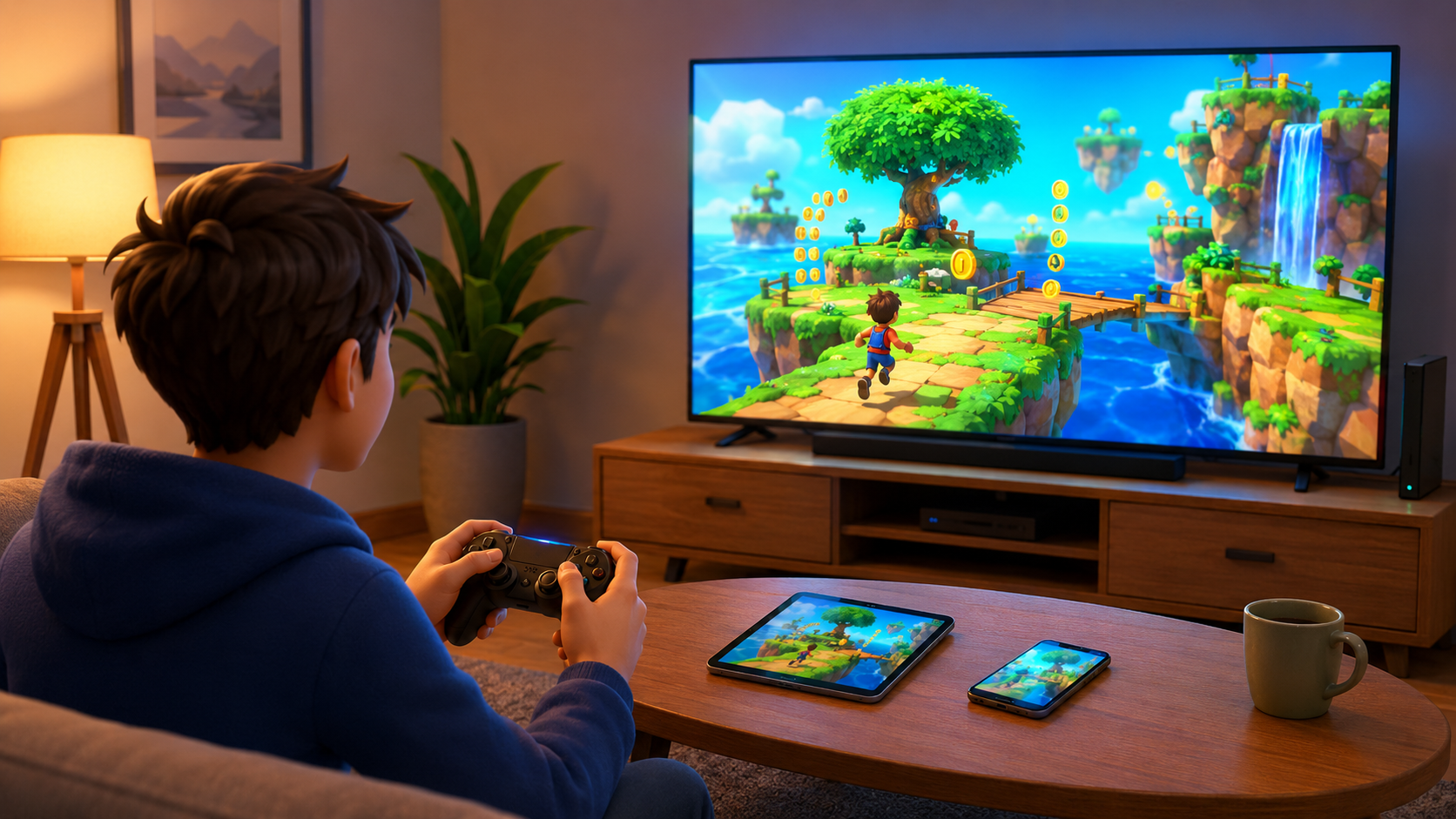
Repeat the check when the device or listing changes
Compatibility, version notes, purchases and portfolio visibility can change. Repeat the official-record check after changing device, region or account, and before recommending the game to someone else. A successful installation on one television or phone is evidence for that setup, not proof of universal availability.
This device-first method remains useful because it does not depend on a fixed catalogue count or store layout. It connects a real player need to a current first-party record, then validates the result in the installed build. That is the safest way to find a GameBee game that fits now.
Review the dated GameBee portfolio evidence report for the public facts behind platforms, published-game milestones and the unverified 70+ claim.
Questions about device and edition fit
How do I know whether a GameBee game supports my device?
Open the individual official listing from the matching Gamebee Studio developer profile and read its compatibility section on the intended device. A catalogue card or similar title on another platform is not enough.
Can I use the same controls for every GameBee game?
No universal control map is publicly established. Confirm touch, remote, controller, keyboard or other input support on the exact edition, then test the opening session on the actual hardware.
What should I check before installing a GameBee title?
Check developer identity, compatibility, input, storage, network needs, age rating, advertising, in-app purchases and privacy or data-safety information. Treat territory-specific store fields as current at the time you review them.
Does a GameBee title on one store prove it exists on another?
No. Storefront and platform availability must be verified independently. Similar names may represent separate editions, and features or purchases should not be transferred without an explicit first-party connection.