
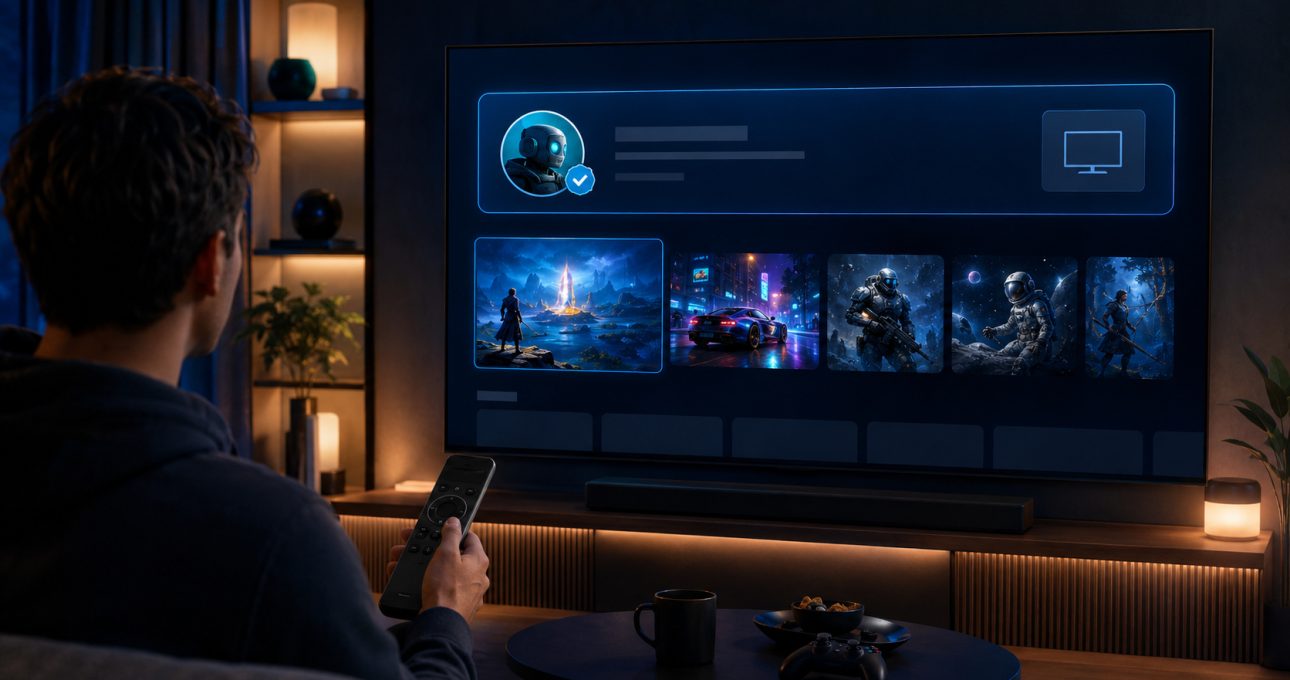
To install a GameBee game on Android TV or Google TV, open Google Play on the target television, search for the exact title, confirm the developer and television compatibility, review the supported input and commercial terms, then select Install or the action displayed. A GameBee phone app or a card in the legacy website collection is not enough to prove that the game will run on the big screen.
Google's Android TV installation instructions provide the platform steps. The product decision still belongs to the exact listing shown for your device.
Identify the television system and Google account
Confirm that the screen or streaming device runs Android TV or Google TV and is signed in to the intended Google account. A television brand can use different operating systems across models, so the logo on the frame is not sufficient. Open Settings, review the device information and complete available system updates before searching.
Check that the account country and parental controls match the intended household. Store availability, age restrictions and offers can vary. Use the same device for discovery and installation so a web result associated with another device does not create a false expectation.
Begin with the verified GameBee developer
Open the GameBee profile on Google Play or search “Gamebee Studio” from the television. Confirm the developer spelling on every result. Similar game names can exist under unrelated publishers, and choosing by icon alone is not a reliable identity check.
The legacy Android collection can help you recognise established GameBee titles. Its filter is not a live television catalogue and may omit current releases or retain outdated associations. Return to Google Play for the final compatibility decision.
Distinguish a television edition from a phone build
Look for “TV,” “Android TV,” or connected-television language in the title or description, and review the devices Google Play allows you to select. Baseball Super League, for example, has a distinct television package. The related mobile identity does not establish the television package's controls, modes or terms.
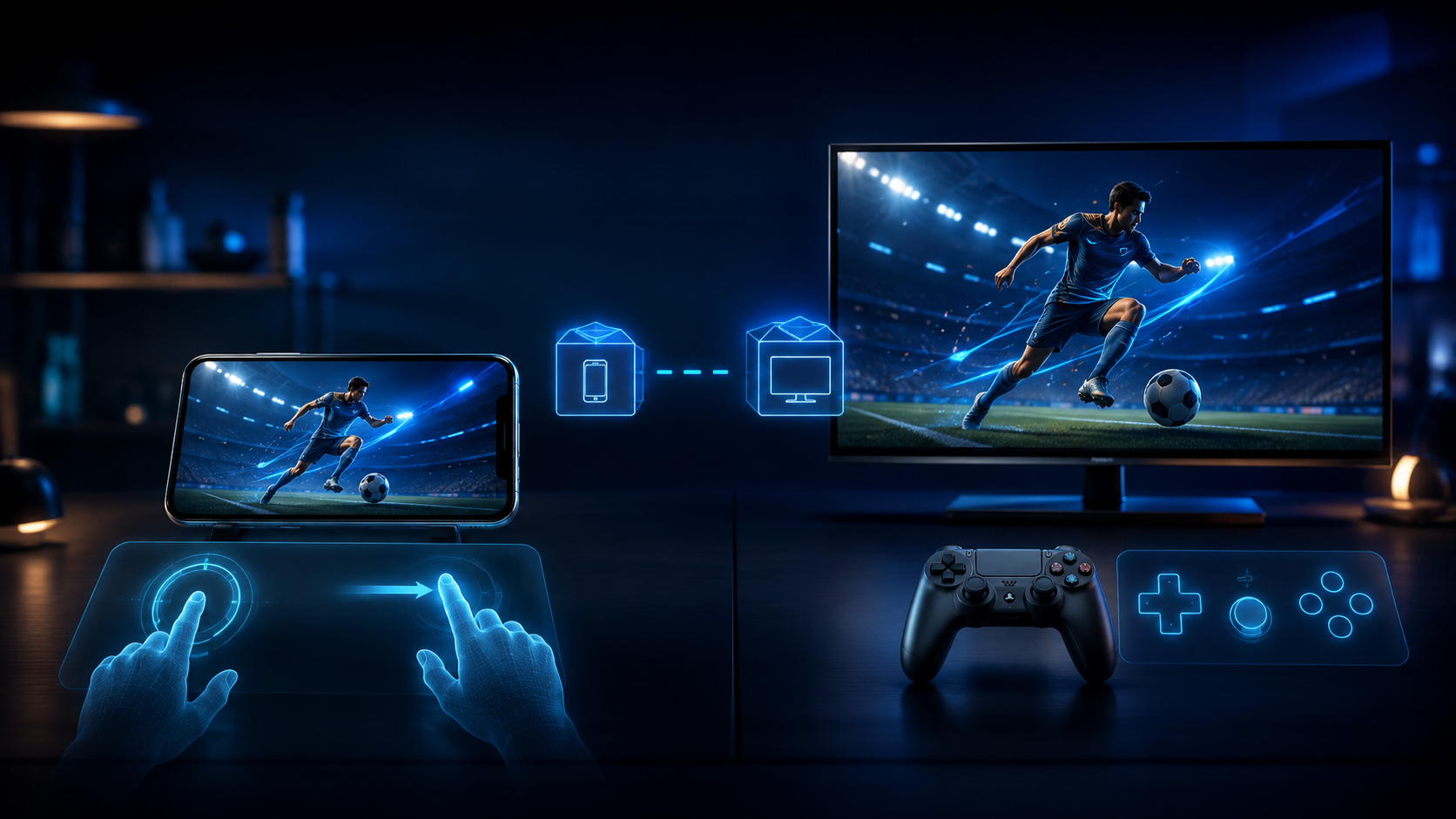
If Google Play says the app is unavailable for the device, do not force installation from an unofficial source. Choose a GameBee title with a current TV-compatible result. This keeps updates, purchases and data disclosures attached to the official distribution channel.
Inspect input and access terms before download
Google notes that Android TV games can use a remote or gamepad depending on the title. Read the GameBee description for the exact input. World Sports Challenge 2025 TV and Baseball Super League 3D – TV currently name remote and gamepad support; Pool Masters 3D describes television-remote controls. Another title may make a different choice.
Review the price, advertisements, in-app purchases, subscriptions and trial language displayed to the account. Do not state a fixed offer from memory. Also inspect the current content rating, privacy information, download size and connectivity requirements relevant to the mode you intend to use.
Install from Google Play on the target screen
Select the title, choose Install or the purchase action shown, and wait for the download to finish. Google explains that installed apps can be opened from the Apps section. If storage is low, remove unused downloads or clear space through the device settings before retrying.
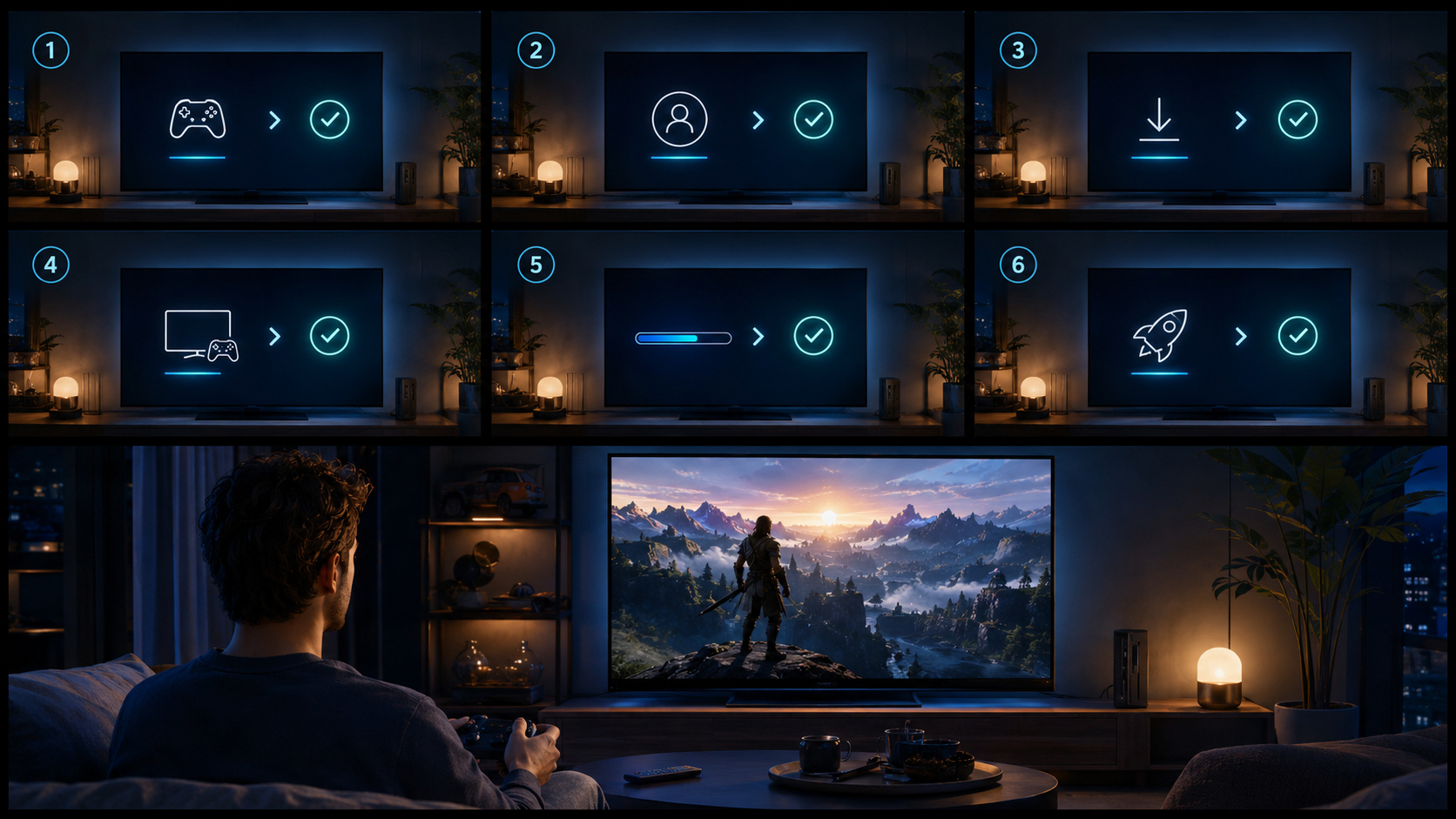
Avoid interrupting power during installation. After the first launch, allow any game update to complete and read the sign-in, privacy and purchase prompts. If a subscription or one-time unlock appears, compare it with the Google Play detail before accepting.
Set up the correct input before play
Test the television remote in the Android TV or Google TV interface. If the game listing supports remote play, open a simple mode and confirm directional movement, selection and Back. If a gamepad is supported or required, pair it through the device settings and verify that it can navigate the system before testing in the game.
Do not assume that one controller works identically across every title. Button labels, analogue input and vibration can vary. The current listing and on-screen prompts should define the mapping for the installed edition.
Complete a controlled first session
Start with the shortest available mode and learn the input before entering a tournament or online match. Confirm sound, picture boundaries and text readability from normal seating distance. If a title includes online competition, check the network connection and any account requirement before relying on it.
For a shared session, verify whether “multiplayer” means local, online or alternating turns. Pair the required number of controllers and test each one. This preparation turns a successful installation into a playable setup rather than an unresolved collection of assumptions.
Fix search, download and launch failures methodically
When a title does not appear, recheck spelling, developer identity, account country, parental restrictions and device compatibility. When a download stalls, verify network access, free storage and pending system updates, then restart the television device. When the game opens but does not respond, compare the active input with the title's current requirement.
If the problem continues, record the television or streaming-device model, Android TV or Google TV version, game package, displayed game version, input and exact error sequence. That information is much more useful to support than a general statement that installation failed.
Keep the website and store roles separate
GameBee's website can explain a title, connect related games and help a player choose. Google Play owns the install action, device compatibility, current offer and update delivery for Android TV. When the two sources differ, the current store result should govern the install decision while the website record is reviewed for an update.
This separation also prevents an Android mobile listing from inheriting television keywords or controls. Each edition earns its claims from its own first-party detail.
Android TV installation questions
Why does Google Play show a GameBee game on my phone but not my television?
The phone and television can use different packages and compatibility rules. Search from the target TV and install only the edition Google Play marks as available for that device.
Can I use the remote for every GameBee Android TV game?
No. Google supports remote and gamepad input at platform level, but each title chooses its controls. Read the exact listing and test the installed edition.
What should I check when an installation remains pending?
Verify internet access, free storage, Google account status and pending system updates. Restart the device, reopen Google Play and retry the current compatible listing.
Is the legacy Android collection the complete GameBee TV catalogue?
No. It is temporary website navigation and can be stale or incomplete. Use the current GameBee developer profile and the result shown on your television for availability.
Install the edition Google Play confirms
Open the current GameBee catalogue on Google Play, select a title that appears for your television and review its input and terms. The correct package is the one the target device can verify, update and launch.