
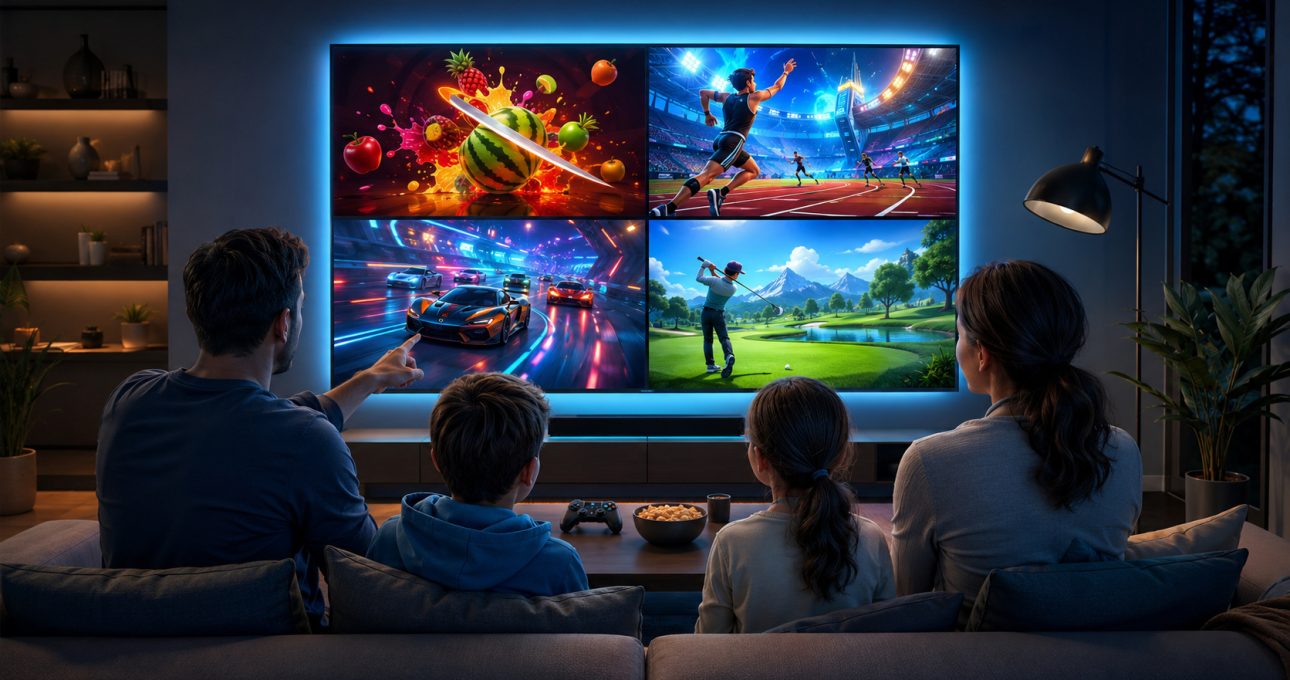
The best GameBee smart TV game is the one that matches your television, preferred input and available play time. Start with the live GameBee games library, then confirm the exact edition in the store on your device. For Android TV, GameBee has verified television editions with remote or gamepad support. Current Apple listings identify selected games as Apple TV compatible. Fire TV availability can differ by device and country, so the safest choice is the title your Fire TV Appstore actually displays for installation.
This guide does not rank games by fluctuating ratings or assume that a mobile edition will run on a television. It groups verified choices by the kind of session they support, then shows what to check before downloading.
Pick for the television you actually use
Television operating systems have separate catalogs. A title visible on Google Play for a phone is not automatically the Android TV edition, and an iPhone listing is useful for Apple TV only when Apple names Apple TV among the supported devices. On Fire TV, use the Appstore from the target device and verify the app detail shown there. This extra minute prevents a common mismatch: finding the right game name but the wrong package or control scheme.
On Android TV, the GameBee developer catalog on Google Play is the strongest starting point. On Apple TV, check the device compatibility and controller notes in each Apple listing. On Fire TV, follow Amazon’s search and installation flow and treat the result shown on your television as the current source of truth.
Choose a style of play, not just a familiar name
Fruit Cutter TV for immediate arcade rounds
Fruit Cutter TV 3D suits a quick, visually direct session. Its Android TV listing describes remote and controller input, plus Arcade, Classic and Relax modes. That combination makes it easier to choose between a score-focused round and a lower-pressure session without learning a large ruleset first. Check the current Google Play detail on your television before installation because store terms and device compatibility can change.
Baseball Super League for innings and team decisions
Baseball Super League is the stronger fit when you want batting, pitching, fielding and team development rather than a single arcade action. GameBee currently maintains a distinct Android TV edition, while Apple identifies its current Baseball Super League edition as Apple TV compatible. Modes and controls are not identical across every package, so choose the listing for your screen rather than transferring assumptions from mobile.
World Sports for a broader event rotation
World Sports Challenge works for players who prefer changing disciplines instead of repeating one sport. Apple’s current listing for World Athletics & Sports Games includes Apple TV and describes Career, Tournament and Challenges alongside a broad event set. The Android mobile listing confirms a different selection and mode description. Read the store detail for your edition before using any event list as a promise.
Racing, golf and character-led alternatives on Android TV
GameBee’s current Android TV catalog also includes options such as Master Racer TV, Golf Masters Android TV and Chhota Bheem Kart TV. These cover distinct interests: driving, deliberate shot selection and character-led kart racing. Their presence in the developer catalog makes them useful candidates, but the detail visible on your device should decide compatibility, price and input. A catalog tile is an invitation to check, not proof that every television can install the same build.
Match the input to the experience
A remote is convenient for simple directional choices and short sessions. A gamepad usually gives more comfortable repeated movement or multi-button control. The store detail should say which input the television edition supports; platform support alone does not guarantee that every game works well with every controller.
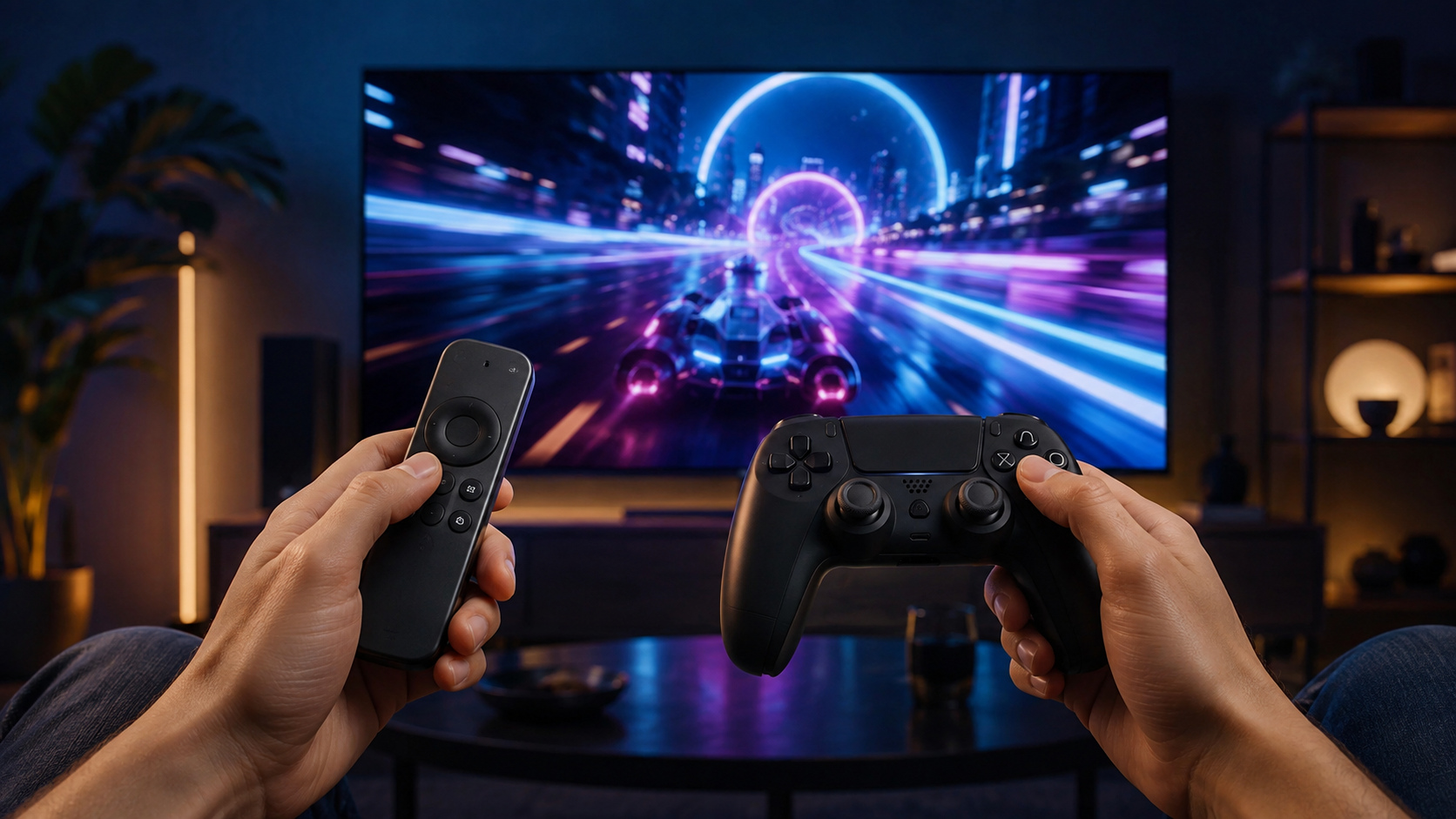
For shared households, confirm the input before inviting another player. A listing that mentions multiplayer may mean local, online or edition-specific play, and the number of supported players can vary. When that detail is absent, test the installed game rather than promising a particular setup.
Use session length as a practical filter
If you have ten minutes, a direct arcade loop is easier to enter and leave. With more time, a tournament, full match or career structure can carry progress across a longer sitting. Sports compilations add variety but may ask you to learn several timing patterns. Racing and golf can sit between those extremes, depending on the mode you select.
The useful question is not “Which title has the most features?” It is “Which loop will I actually finish tonight?” A smaller mode you understand is often a better first download than a complex title chosen only for its breadth.
Check the store detail before selecting Install
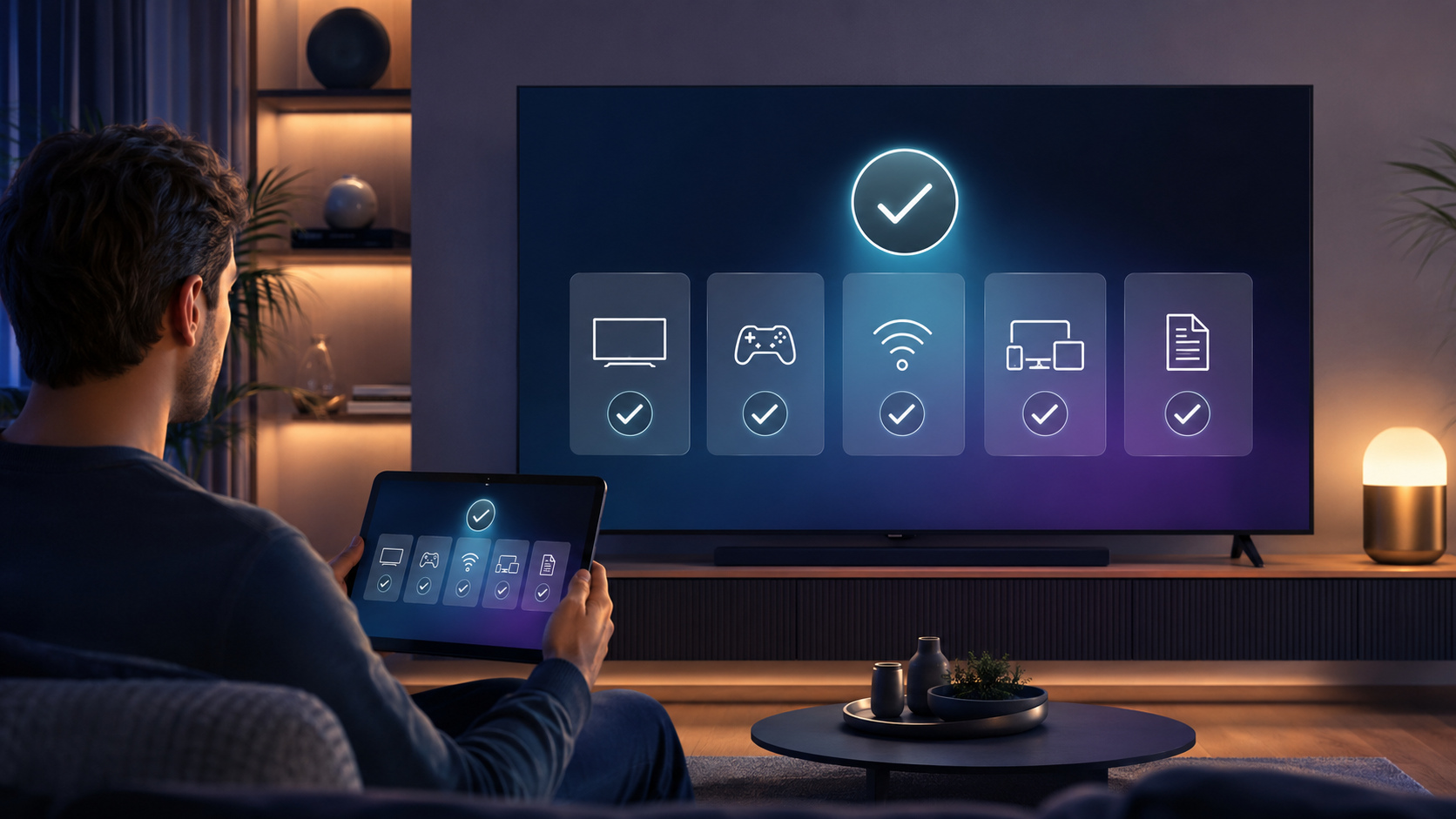
Review five items on the exact listing shown by your television: supported device, required input, price or subscription terms, connectivity requirements and current mode description. Also note the developer name and icon so that similarly named apps do not create confusion. Store descriptions, offers and availability can change after this guide’s fact-check date.
On Android TV, Google explains that games can be found through Google Play and that input may be a remote or gamepad depending on the title. Apple provides separate installation and Bluetooth-controller guidance. Amazon’s Fire TV help likewise directs players to Games or Find, while noting that some games can require subscriptions and that availability varies.
A simple first-night shortlist
Choose Fruit Cutter TV when you want an immediate score loop, Baseball Super League when you want a fuller sports structure, or World Sports when event variety matters most. For driving, golf or character-led kart racing on Android TV, inspect the relevant GameBee listing on the target screen. For Fire TV, search the current Appstore from the device and proceed only when the exact GameBee title and terms are visible.
That process is less dramatic than a universal top-ten ranking, but it is more useful: it keeps platform, controls and expectations aligned.
Questions players ask before choosing
Can every GameBee mobile game be installed on a smart TV?
No. A mobile and television edition can use different packages, controls and compatibility rules. Look for Android TV or Apple TV support on the exact first-party listing, or confirm the title in the Fire TV Appstore on your device.
Which verified GameBee option is easiest for a short TV session?
Fruit Cutter TV is a sensible starting point because its television listing describes direct remote or controller play and three clearly differentiated modes. Your preferred input and current store terms should still guide the final choice.
Do I need a gamepad for GameBee television games?
Not always. Some verified Android TV listings support a remote, while others also support a gamepad. Apple TV controller support depends on both the controller and the app. Check the individual listing before buying hardware.
How should I check a GameBee game on Fire TV?
Open Games or Find on the target Fire TV, search for the exact title and inspect the detail before installing. Confirm developer, device compatibility, price or subscription terms and required input; do not assume Android TV or Apple TV availability transfers to Fire TV.
Find a game that fits your screen
Browse GameBee’s current games and open the first-party store listing for the television you own. Verify the edition and controls there, then choose the play style that fits your next session.